
MCP Apps: Custom UIs Inside Claude
MCP Apps bring your custom UIs inside Claude. I built 4 and share what I learned: how they relate to MCPs and skills, rules of thumb, and more.
MCP Apps—a way to add our own custom UIs inside Claude—arrived as a standard on January 26th. MCP Apps work inside all of the in Claude surfaces that actually have UIs, basically everything but Claude Code, now that Claude Cowork supports them. MCP Apps also work on OpenAI and several other platforms, but we’ll focus on the Claude world here.
How We Got Here
On December 9th, Anthropic announced:
Today, we’re donating the Model Context Protocol (MCP) to the Agentic AI Foundation (AAIF), a directed fund under the Linux Foundation, co-founded by Anthropic, Block and OpenAI, with support from Google, Microsoft, Amazon Web Services (AWS), Cloudflare, and Bloomberg.
Then, just over a month ago (Jan 26th), the MCP core maintainers announced:
MCP Apps are now live as an official MCP extension. Tools can now return interactive UI components that render directly in the conversation: dashboards, forms, visualizations, multi-step workflows, and more. This is the first official MCP extension, and it’s ready for production.
MCP Apps actually brought together work from OpenAI (OpenAI Apps SDK) and the independent creators of MCP UI including Ido Salomon and Liad Yosef, with Anthropic co-authoring the MCP Apps spec in November:
MCP-UI and OpenAI Apps SDK pioneered the patterns that MCP Apps now standardizes. The projects proved that UI resources can and do fit naturally within the MCP ecosystem, with enterprises of all sizes adopting both the OpenAI and MCP-UI SDKs for production applications.
Claude supported MCP Apps from day zero, January 26th.
Cool, But …
I was excited about MCP Apps joining the already-exciting lineup of Claude extensions that enable us to distill our business domain knowledge (skills) and connect to our business context (MCPs). But honestly, I wasn’t exactly sure about their real-world applications.
The announcement included one of Anthropic’s brief demo videos showing off the Figma MCP app, and this helpful bit:
Great, that’s kinda helpful, but … this is so high-level, so far from me understanding how to architect and build MCP Apps—and the MCPs they live inside—let alone how MCP Apps should relate to the other members of the team, most importantly skills. And let’s not forget, how do you deploy these guys?
Learning by Building
Claude Code has made me fearless, especially since December (The Awakening). Build something that actually works using a new technology whose paint is still wet? No worries. Figure out how to deploy that thing in a production-grade cloud environment? Yep, bring it on. So off I went.
Four MCP Apps
So far I’ve built four MCP Apps, across four MCPs:
| MCP | App Name | Initial Version | Last Major Update |
|---|---|---|---|
| Obsidian | Task Triage | Feb 3 — task dashboard | Still evolving (Meeting Todos added Mar 2) |
| Calendar | Meeting Prep | Feb 9 — schedule view + prep scheduling | Feb 26 — cross-day slots, fullscreen, Done button |
| People Knowledge | Past Interactions | Feb 12 — email dropdown + meeting history | Feb 23 — action items capture, fixes through Mar 3 |
| Excalidraw | Interactive Preview | Feb 16 — SVG preview | Feb 26 — fullscreen + client-side Excalidraw rendering |
Obsidian was first — just 8 days after MCP Apps launched on Jan 26. It went from planning docs to a working task dashboard in a single day (Feb 3, afternoon). The other three followed over the next two weeks, all reaching a stable state by late February.
Two Skills
Two companion-orchestrator skills emerged alongside these four MCP Apps:
| Skill | Purpose | First Version | Latest Update |
|---|---|---|---|
| day-prep | Orchestrates Meeting Prep, Past Interactions, and Task Triage into a day-planning workflow | Feb 9 (v1.0.0) — same day as Calendar MCP App | Mar 2 — v1.4.0, added meeting todos passthrough |
| excalidraw | Teaches Claude how to create Excalidraw diagrams; orchestrates use of the Interactive Preview app | Feb 16 (v1.0.0) — same day as Excalidraw MCP App | Feb 25 — v1.2.0, label shorthand, slimmed references |
Coincidentally, both skills are in their eighth iteration.
Excalidraw: Skill + MCP + MCP App
Let’s start with Excalidraw, because it’s more self-contained than the three-app Day Prep flow we’ll look at next. The combination here of Excalidraw skill, MCP App, and host MCP:
- Teach Claude how to “program in” Excalidraw
- Give Claude the tools needed to create, edit, load, and save Excalidraw diagrams hosted in Obsidian
- Give Claude visual feedback—a render of the diagram—enabling the model to iterate on and improve its work
Here’s a flow diagram of the process—built entirely by Claude using these tools:
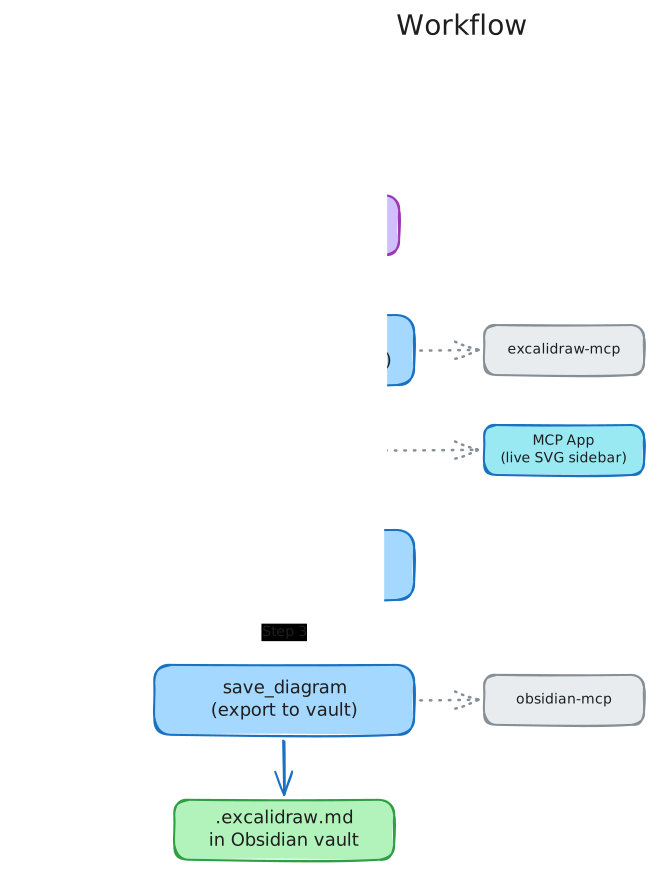
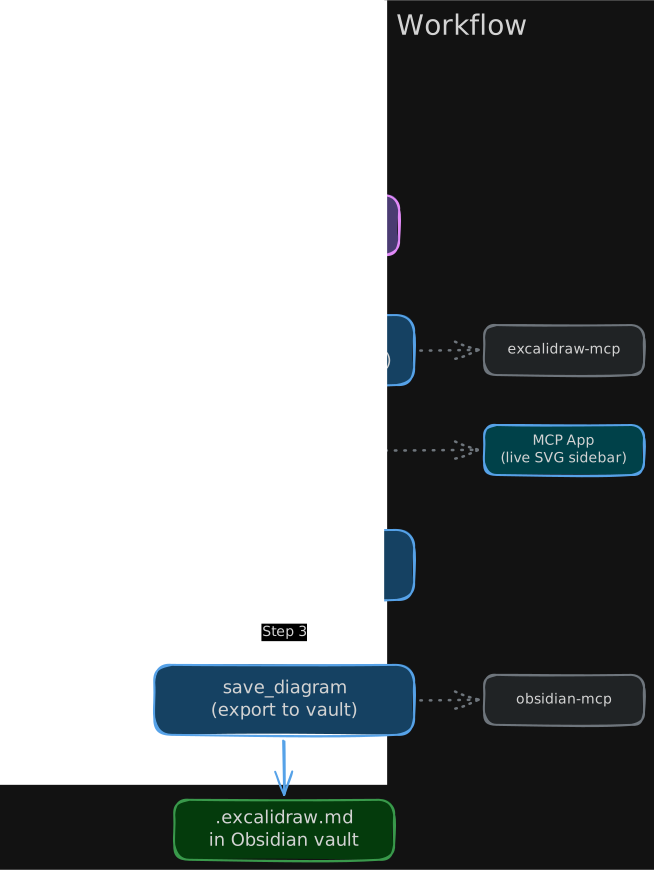
Note that the Obsidian MCP is also on the diagram here, because I host my Excalidraw diagrams as Obsidian markdown. Saving saves to Obsidian.
Here’s the MCP App in action, previewing this same diagram inside Claude.ai in Chrome:
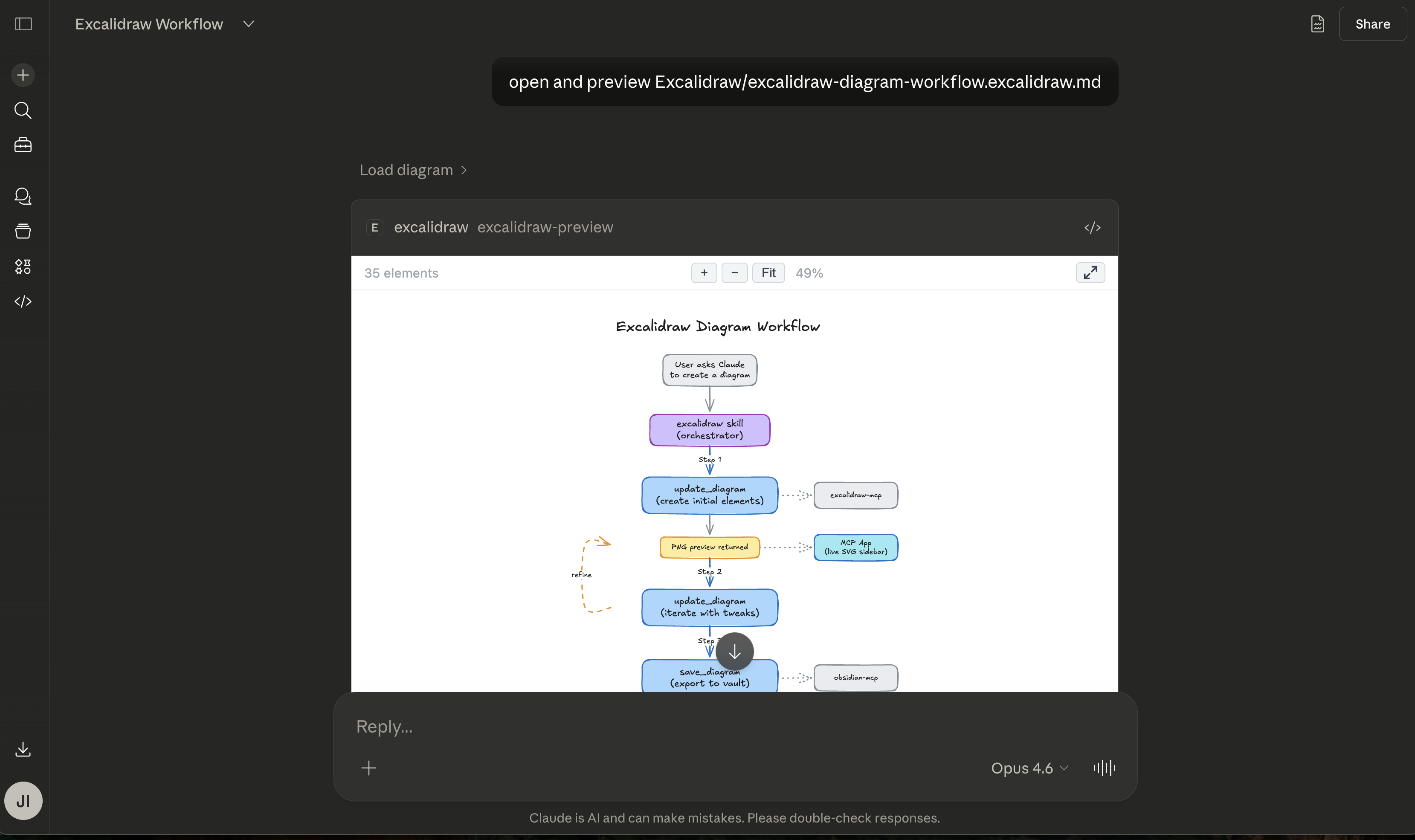
I cannot overstate how useful “teaching Claude to Excalidraw” has proven to be, with the MCP App an important piece of the puzzle.
The Day Prep Flow and MCP Apps
I’m grateful to my fractional CTO clients for their real-life AI workflow wants and needs. One badly wanted Claude to help them get ready for their day, and that led to the day-prep flow, which I built for my own particular flavor of day preparation, using my own mix of tools. Day Prep is three MCP Apps wrapped inside, and orchestrated by, a Claude agent skill.
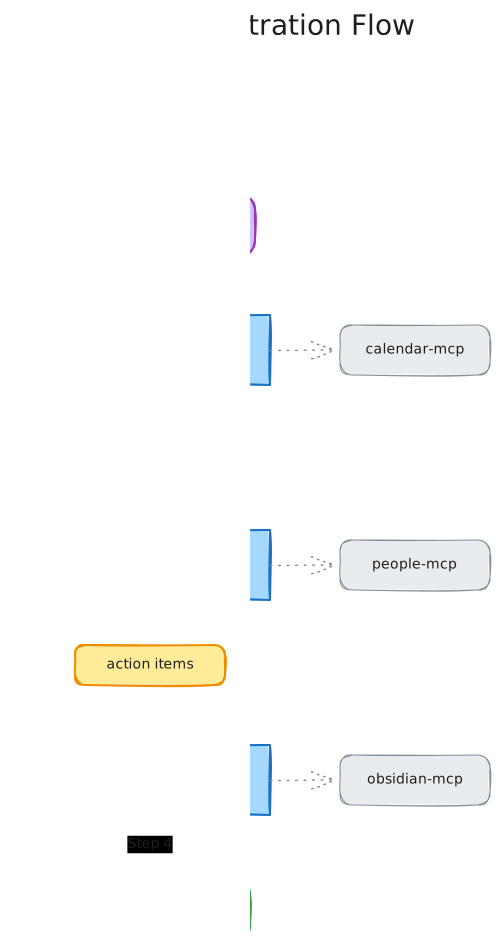
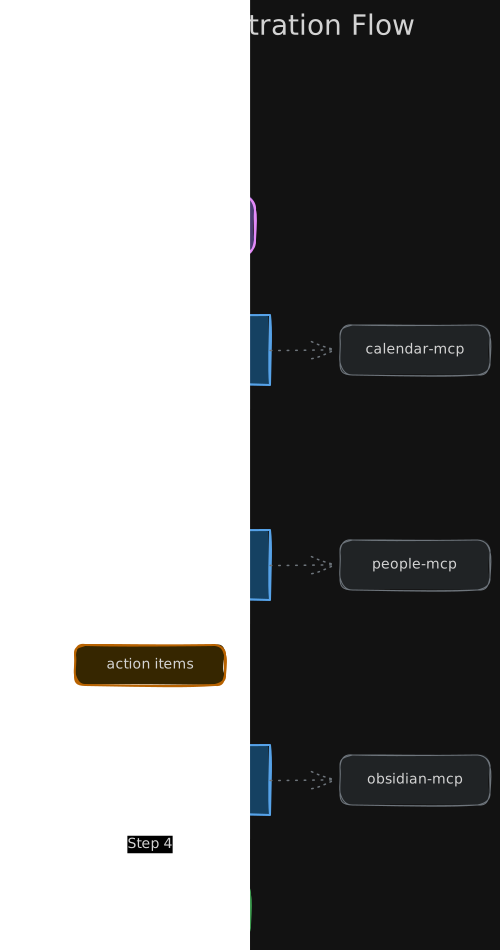
Here’s a flow diagram, again Claude-created:
Day Prep User Experience
Below you can see the UIs of the three MCP Apps that the day-prep skill orchestrates. They’re neither beautiful nor fully thought out, but I find the flow quite useful and effective even so.
(Just click on smaller thumbnail images to see them full-size.)
Day Prep Kickoff (Skill Wrapper)
When the day-prep skill kicks in, here’s the model interacting with us:
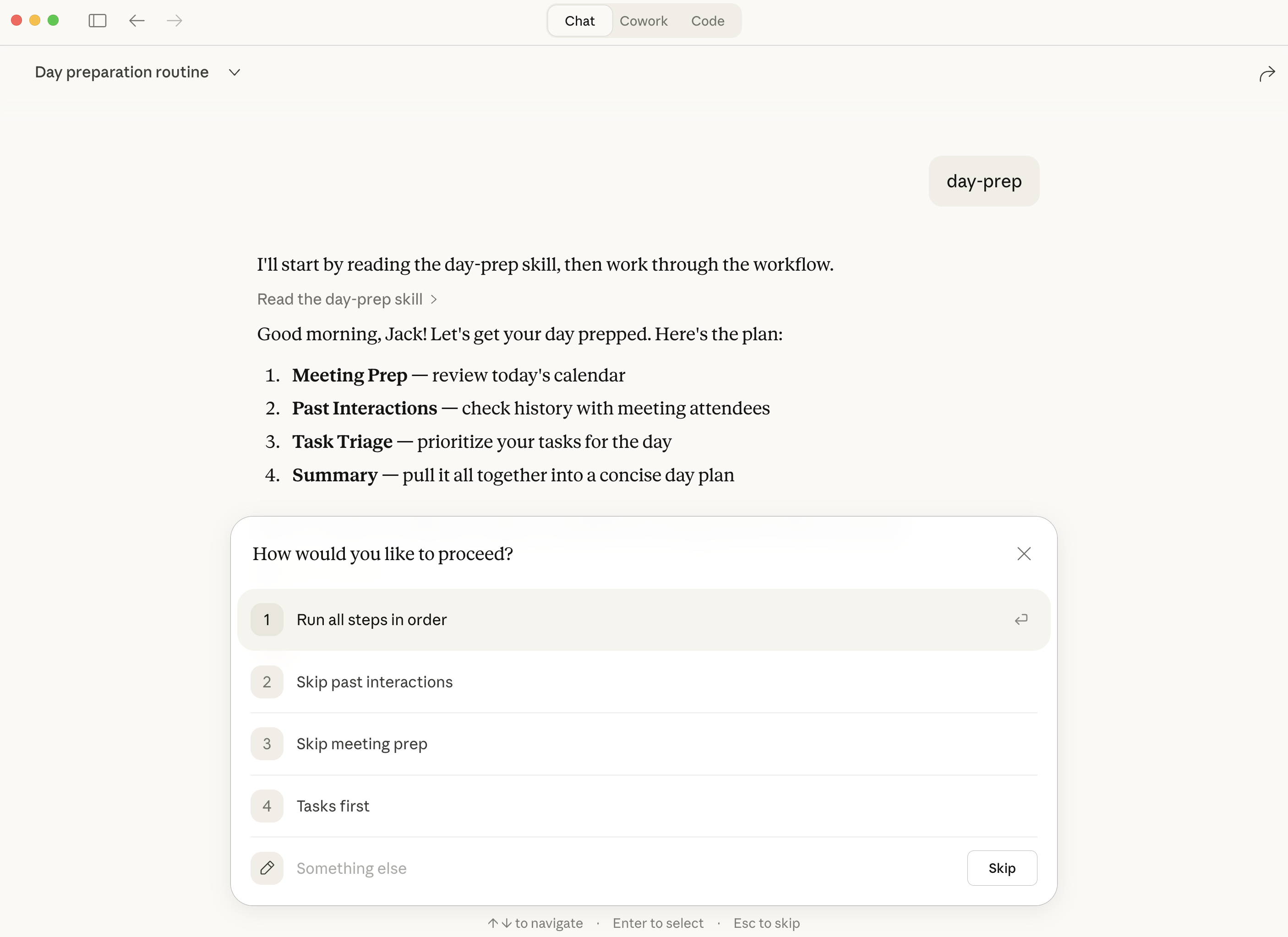
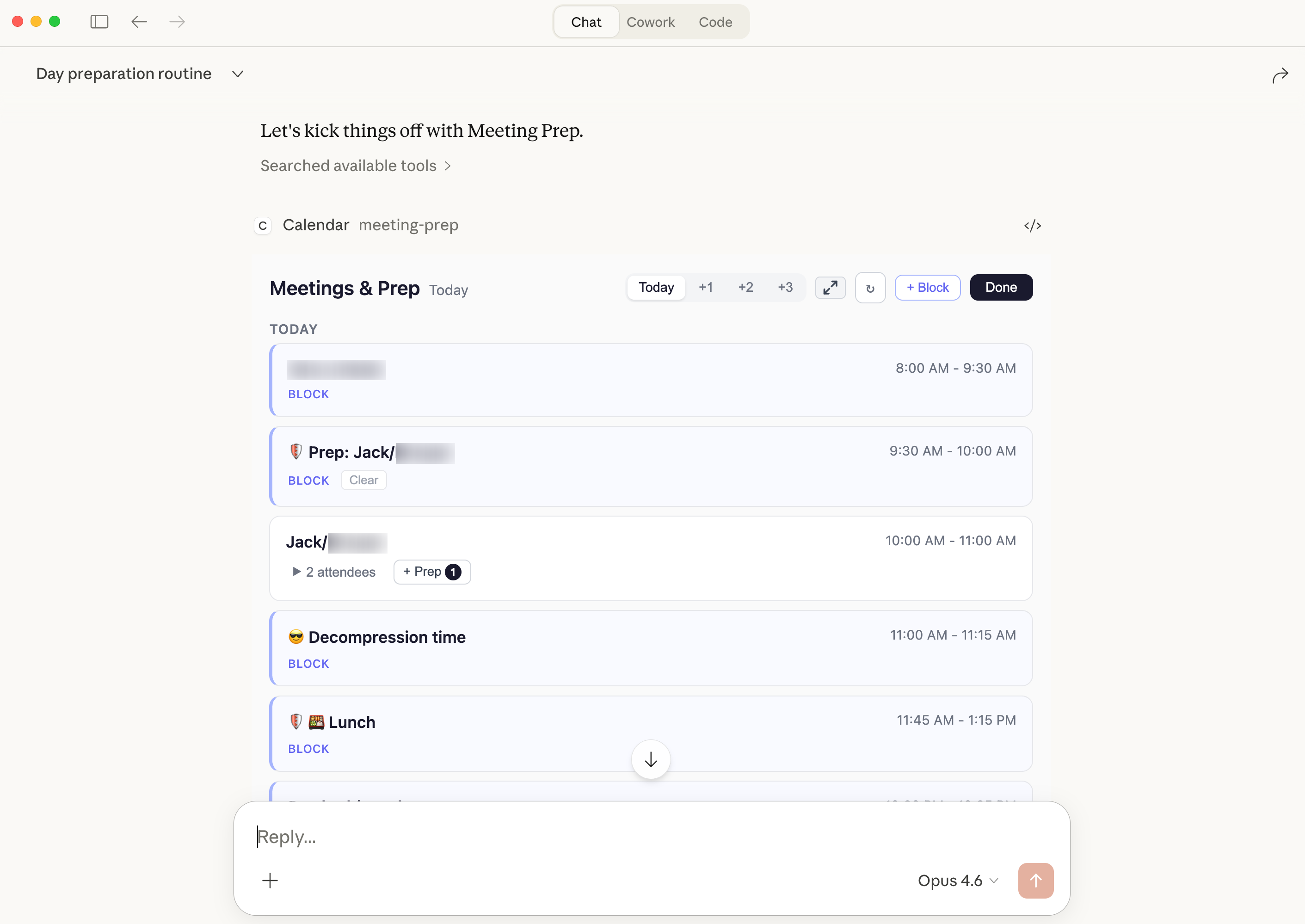
Meeting Prep (MCP App)
Meeting Prep leads things off, showing us our meetings for today, or optionally up to three additional days in the future. Besides meeting awareness, it allows us to block off times for meeting prep.
I use Reclaim.ai to sync five calendars, and since it has a decent API with several interesting capabilities beyond reading calendars (e.g. time blocking), Reclaim is able to serve as a single source for meeting details and time blocking across five calendars.
Behind the scenes, Meeting Prep uses the MCP App updateModelContext method to hand Claude the emails of participants in my upcoming meetings, necessary data for the next step of the orchestrated Day Prep workflow.
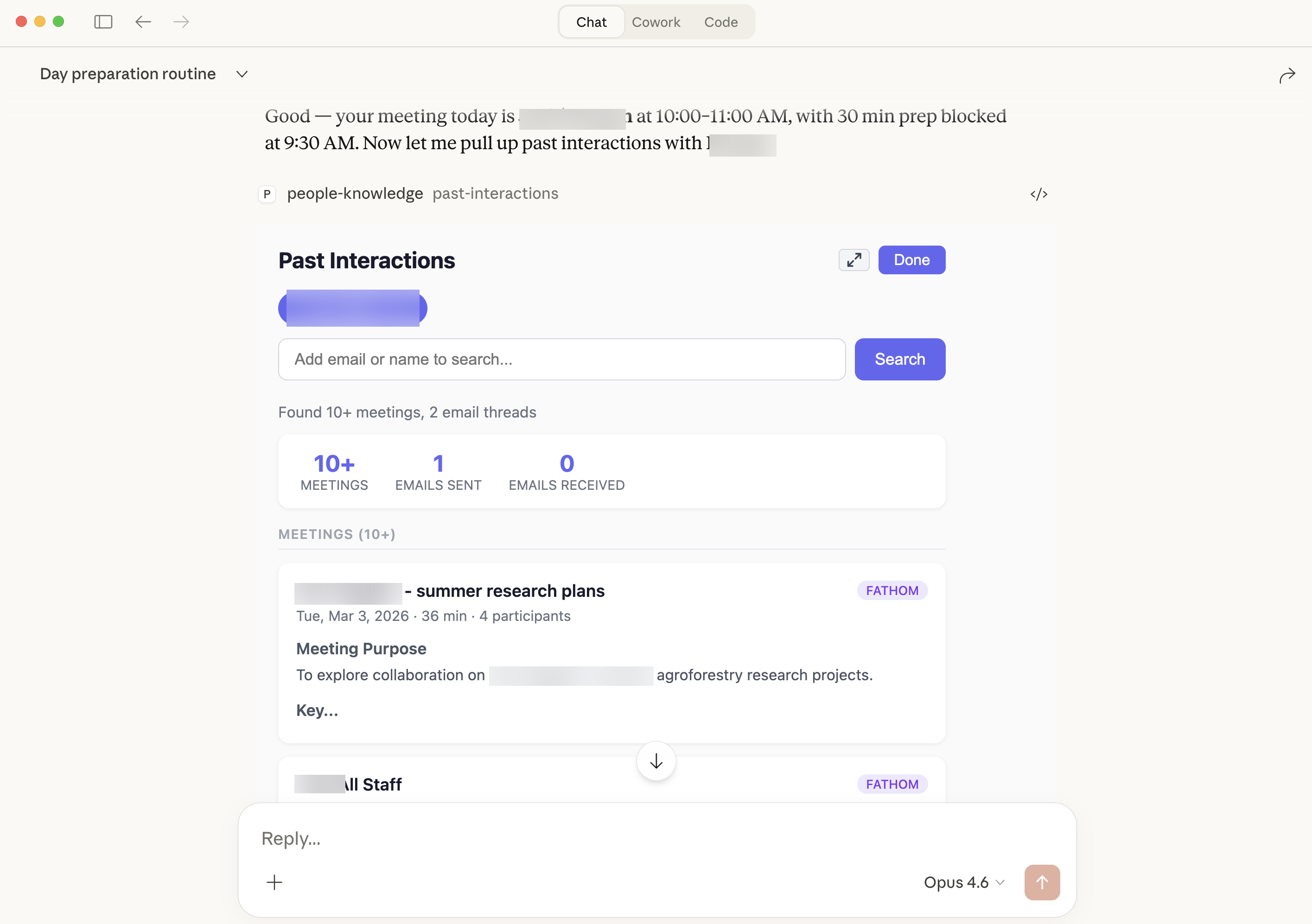
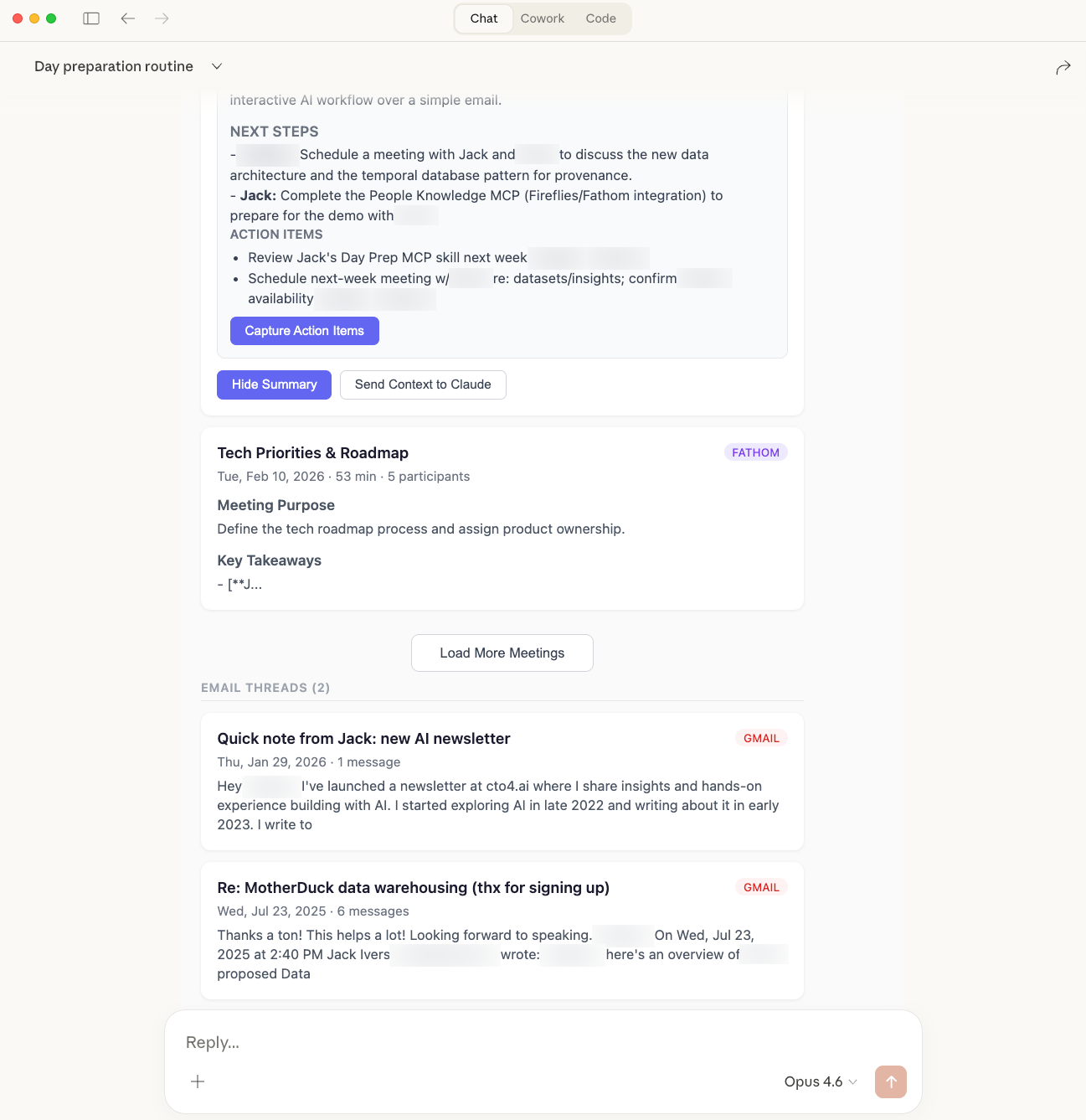
Past Interactions (MCP App)
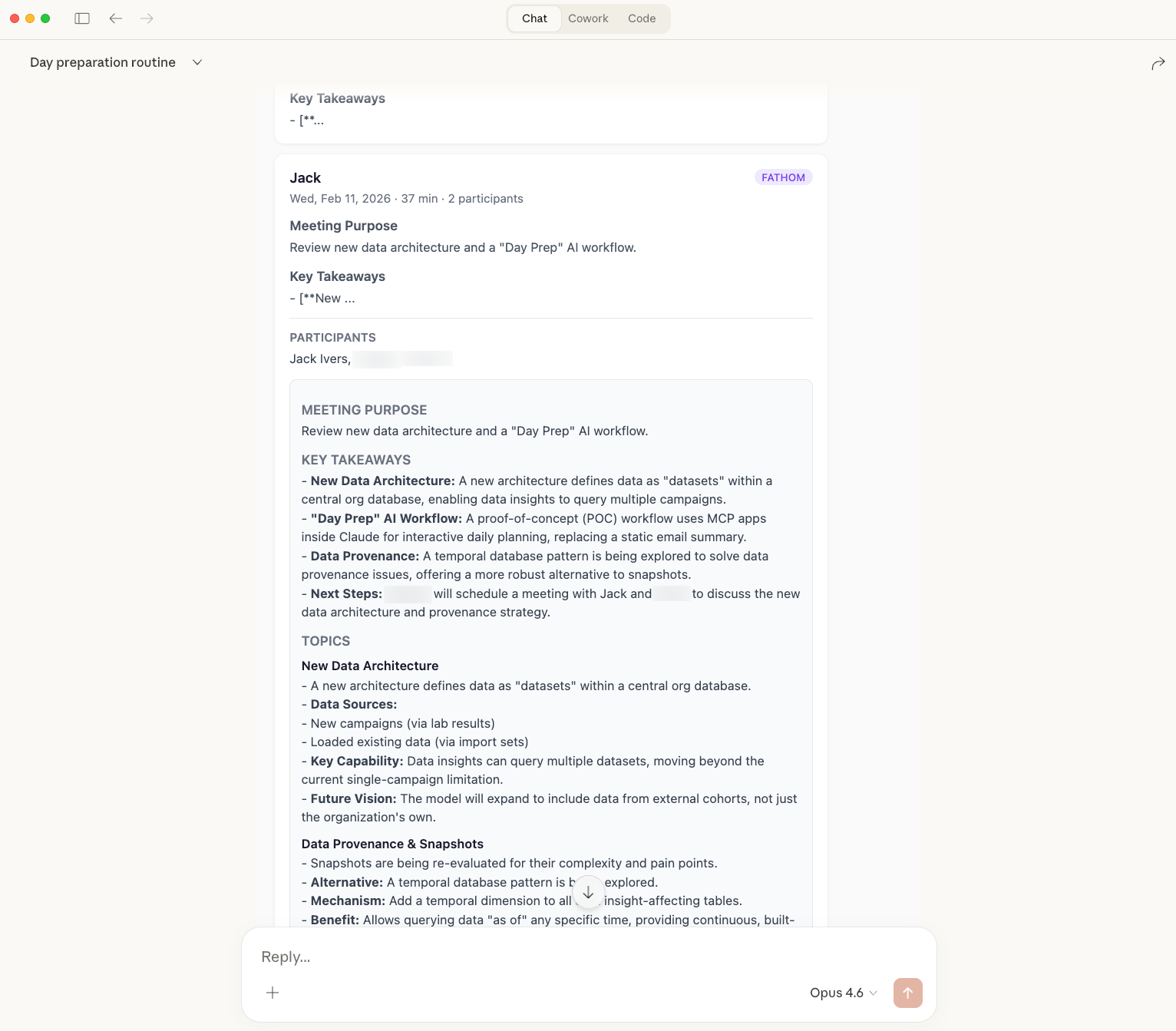
Once Meeting Prep is done, the model loads the Past Interactions app, passing in the emails of meeting participants. When I select someone, the app locates our past interactions in the form of recorded meetings (Fathom, Fireflies) and email threads. For meetings, I can click my way from the initial brief meeting summary, to extended details, to the rather good full-length meeting recaps that both Fireflies and Fathom provide. Both platforms also capture meeting action items, which I can capture for the task planning that is the next step in Day Prep.
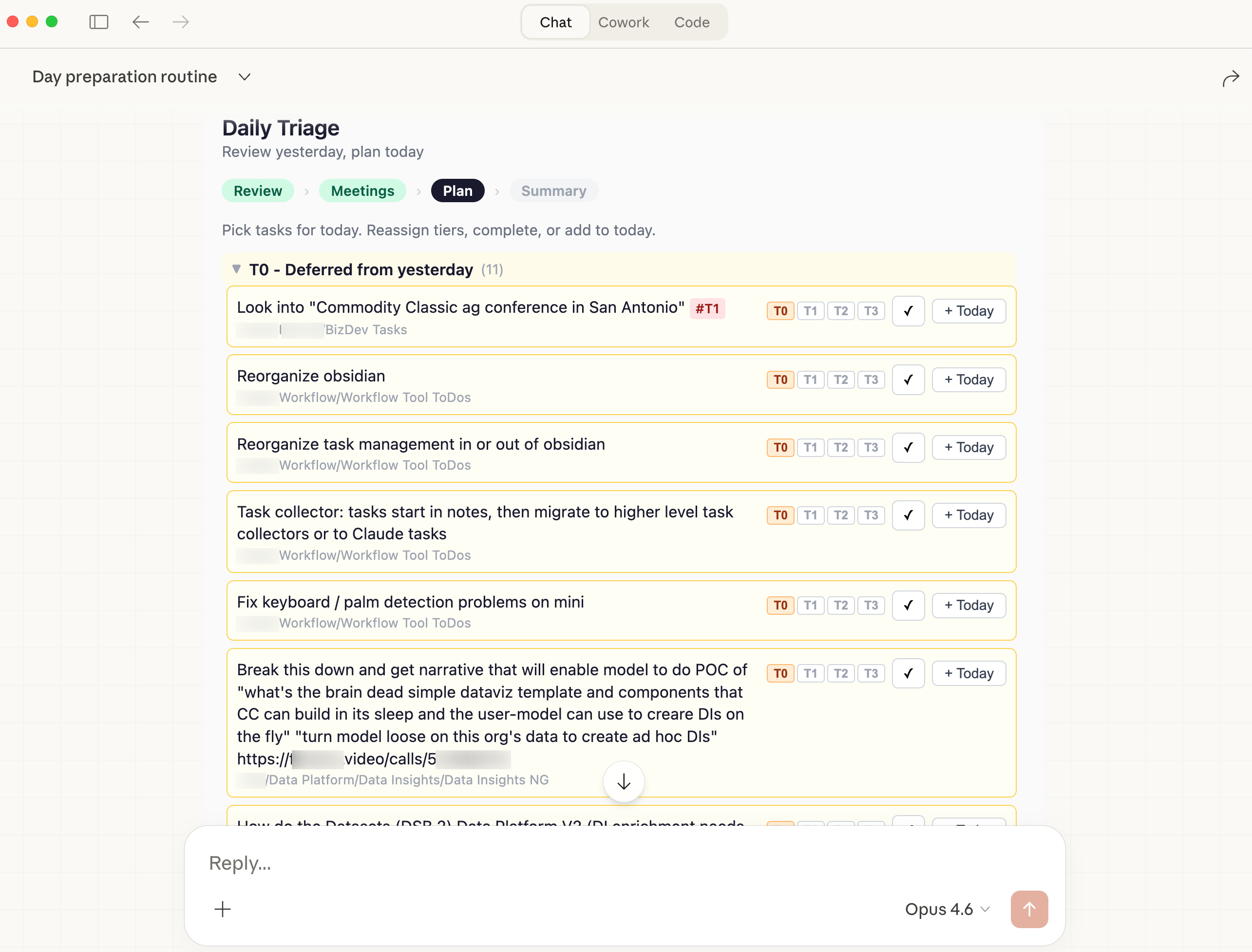
Task Triage (MCP App)
Once I’ve finished reviewing past interactions, the model loads up Task Triage, passing in any action items I captured in the previous step.
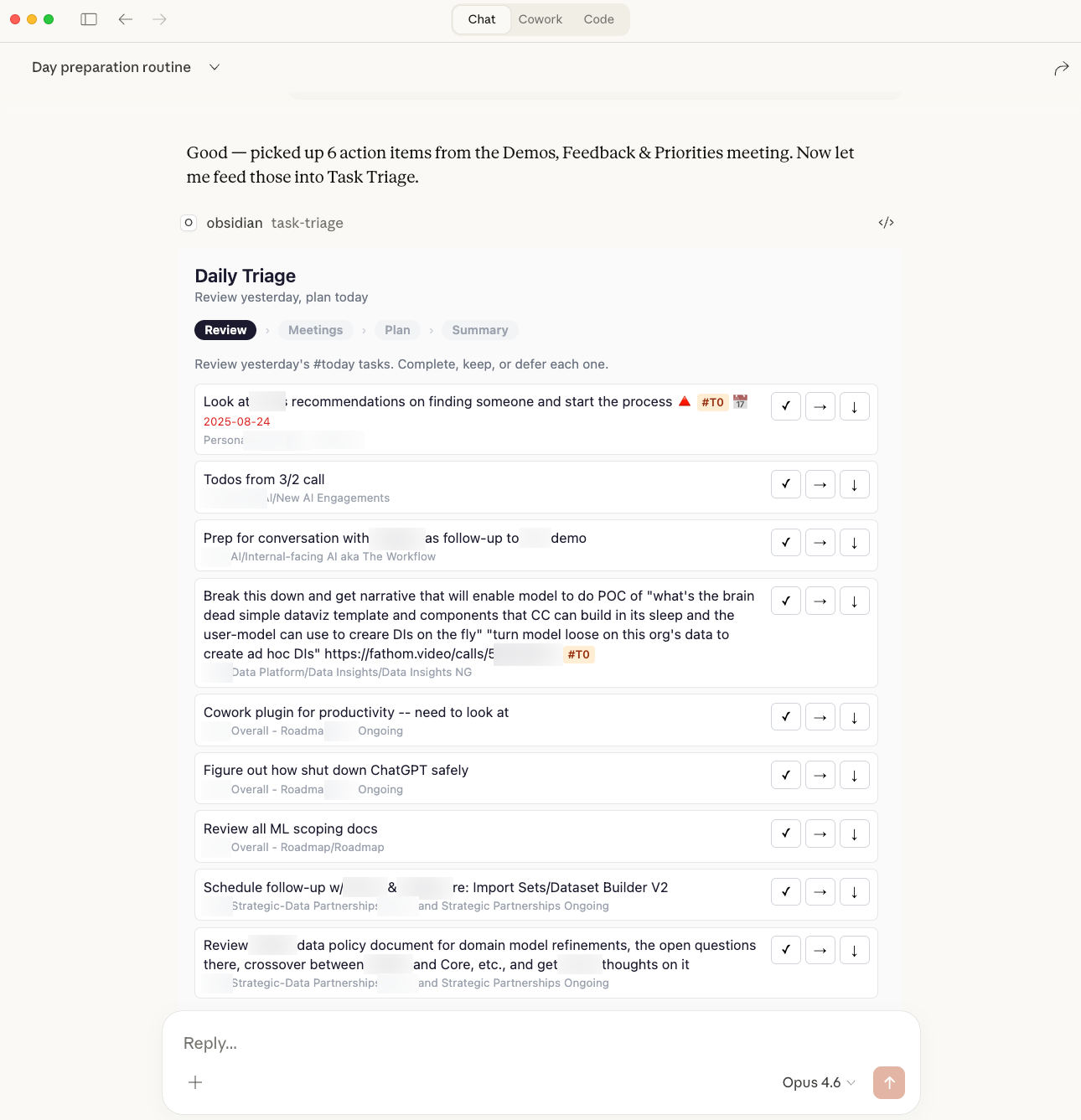
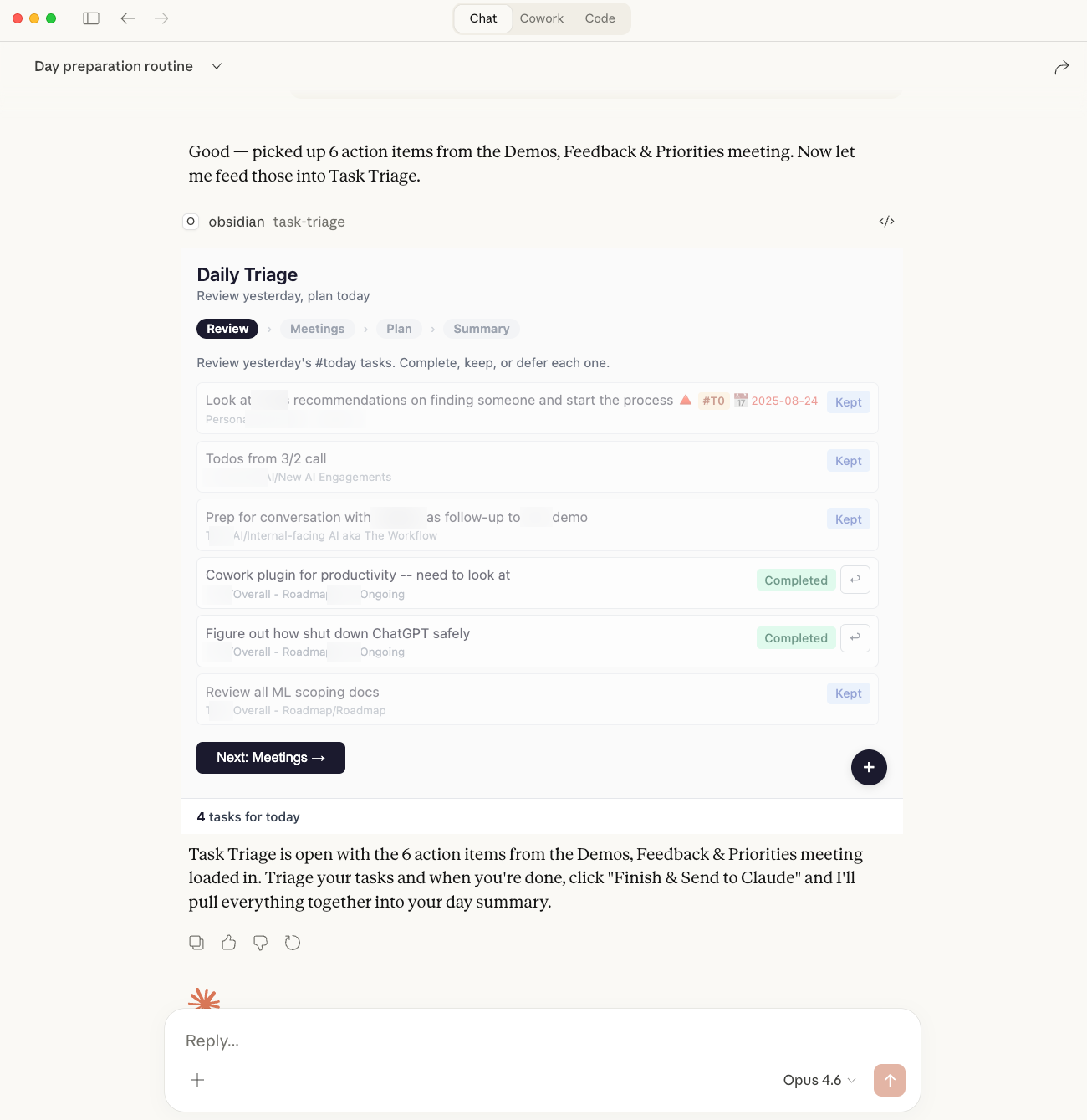
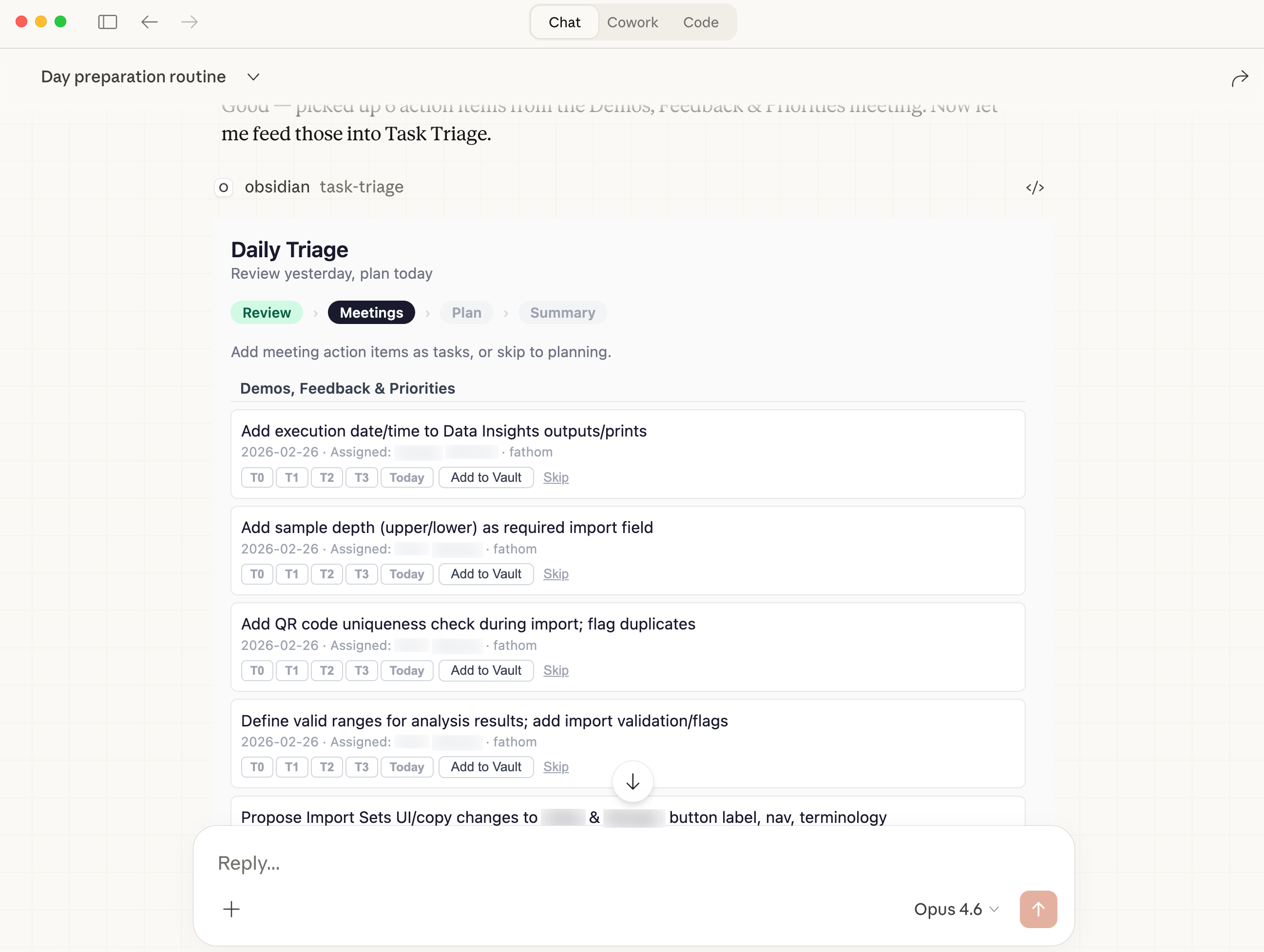
I use Obsidian with the Task plugin to manage my tasks. The Task Triage app is actually a 3-step mini-flow within the larger Day Prep flow:
- Review: In my crazy little system of task management, #Today tasks are what I’m working today, and tomorrow that list of #today items gets reset and reconsidered. That’s the first step of Task Triage: pick which of yesterday’s #Today tasks should get pulled forward into today.
- Meetings: If I captured any Fathom/Fireflies action items during the prior step, next I can selectively add them as new Tasks.
- Plan: Finally I sift through the remainder of my tasks, which are prioritized #T0 through #T3. I can add tasks to #today or otherwise re-prioritize.
Day Prep Summary (Skill Wrapper)
The Day Prep skill, once it gets the message that Task Triage is complete, pulls together a bit of a summary.
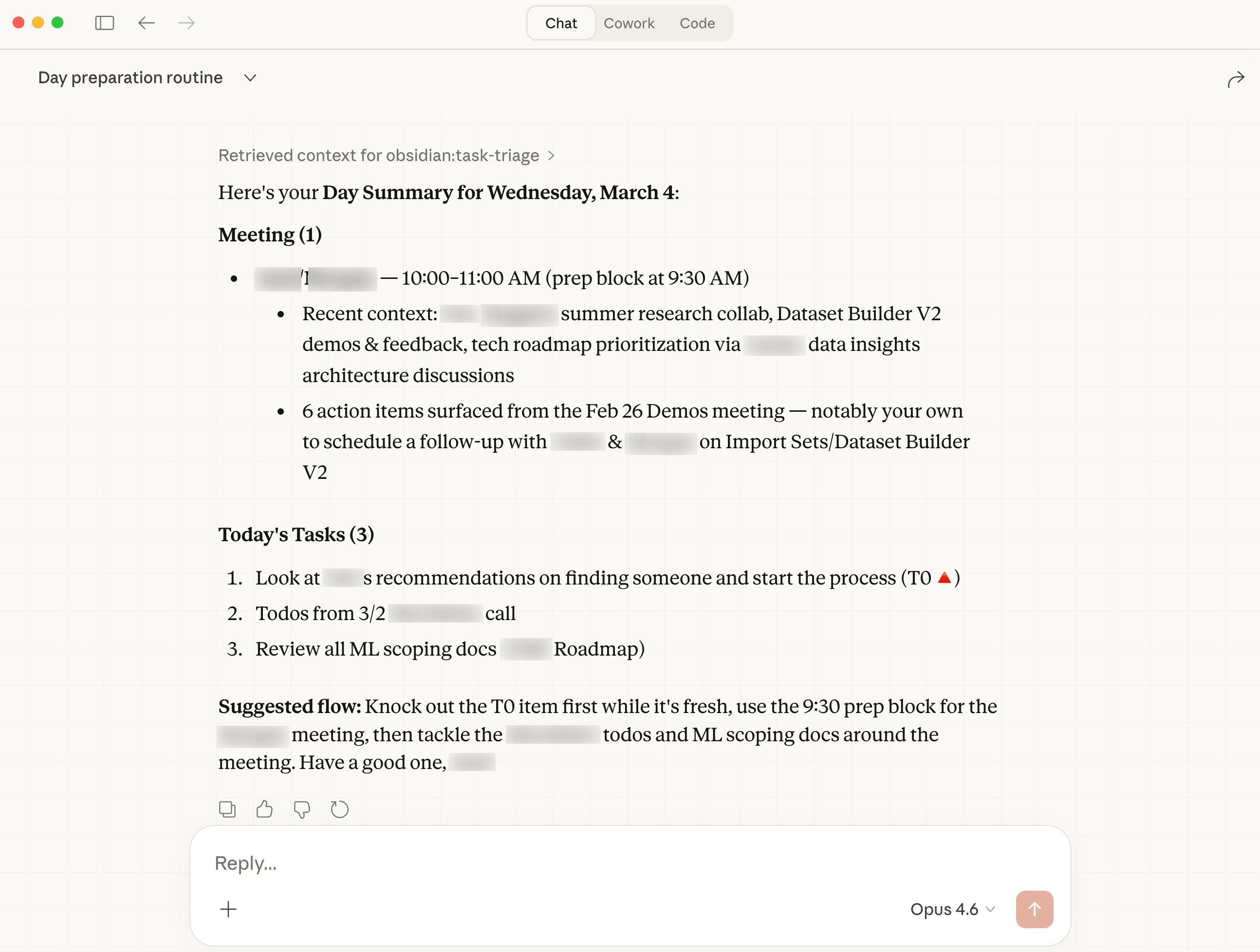
So that’s it for Day Prep. Ugly, experimental, full of warts: and surprisingly useful.
Architecting and Building MCP Apps
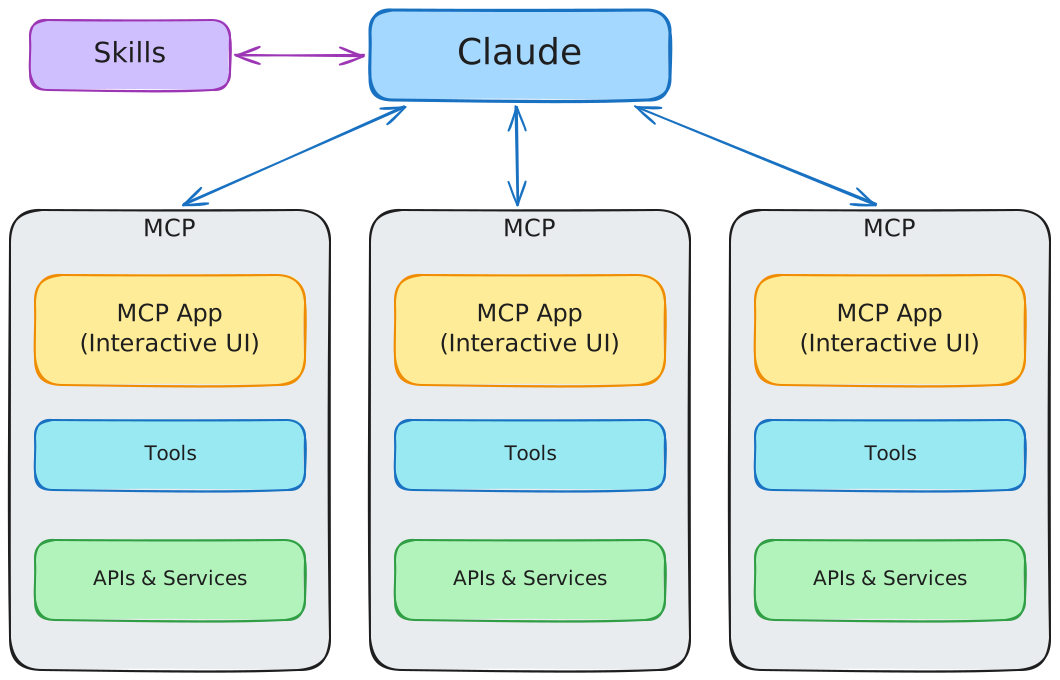
You can’t architect or build MCP Apps without also considering the architecture of their close siblings, MCPs and skills. You have to start with an overall understanding of the full landscape, as well as the constraints inherent to our current technology. Consider these facts and their implications:
-
An MCP App “lives inside” a parent MCP. So the limitations of MCPs are inherited by their MCP App children.
-
The biggest limitation? MCPs don’t compose: we can’t assemble several component MCPs to create an uber-MCP. Each MCP is on its own to connect with the sources of business context it needs.
-
Since every MCP App lives inside a single MCP parent, the implication is this: every context source that an MCP App needs must be connected to its parent MCP. It can’t come from some other MCP. This is especially painful when the other MCP you’d like to use comes from another company and isn’t open source. Fireflies, for example, has an official MCP, but it’s closed source. So we can’t build an MCP App that takes advantage of the official Fireflies MCP. Too bad, so sad.
-
But: APIs to the rescue. We can connect APIs to our parent MCP, and then use those APIs to get the context we need. Fireflies has an API; and Fathom, which lacks an MCP, does have an API. It’s a bit more work than just assembling a collection of MCPs, but remember—code is cheap these days, and getting cheaper all the time. With Claude Code doing most of the work, it’s not that painful to write a quality MCP that hits APIs like those from Fireflies and Fathom.
-
But but: it is possible to compose MCPs together as part of a larger workflow. Guess who has that power? The model. Claude e.g. Opus 4.6, running inside Claude.ai or Claude Desktop or Cowork or Claude Code, can and will assemble whatever combination of MCPs it has available to solve whatever problem you give it. Claude Cowork, with its next-generation customizable plugins, will even walk you through the process of selecting and adding the MCPs you need for a particular knowledge work task.
-
But but but: the model has a critical limitation: text output only. Now, that text can be code, and that code can have a UI. But I’ve found those one-off, on-the-fly React component UIs to be pretty hard to use, and the idea of “always have the model build a new UI app from scratch when you need to do X” seems pretty nutty. Skills can include helper scripts, but again, the model has to do a lot of work to present some kind of UI other than text.
In the end, it all comes down to what’s good enough for a particular workflow. Many times text-only, or on-the-fly UIs, can be perfectly ok. If so, just use the model and skills, and you’ll get the benefits of “MCP composition”—the model will assemble and use whatever MCPs it needs to get the job done.
Pirate Jack’s Rules of Thumb
Don’t Default to building an MCP App without considering carefully whether “let the model do it” might work. If you can live with text-only output, start there.
Do When you build an MCP, consider that you might add one or more MCP Apps at some later point. Will you have the business context you need?

Do Organize your MCPs around general business domains. Neither tiny, micro-sized, single-purpose MCPs, nor a giant monolith-does-everything MCP. My best example is the People Knowledge MCP, whose domain is “knowledge about people that I interact with.” I started with meeting assistant artifacts (transcripts, summaries) and email threads. But this could logically extend to include a CRM connection and, via computer-use tooling, accessing LinkedIn and similar SaaS research tools. Among other benefits, such a general-domain MCP will have everything needed for a good MCP App if needed, such as Past Interactions.
Do Build good MCPs. Remember that 90% of the MCPs in existence today are crappy API-wrappers that guzzle context like frat boys guzzle beer. Keep the tool count low, and never wrap an API to create a tool unless the fit is absolutely perfect. Consider using Cloudflare’s Code Mode MCP architecture, where two tools, search and execute, handle everything and model context overhead is a mere 1000 tokens.
Do Default to remote OAuth style MCPs (aka Claude Connectors). Avoid taking the local-only stdio MCP shortcut, it
won’t scale and isn’t worth it even for proof of concept work. Get robust authentication in place day one, it’s not hard
and we’re far enough down the road now that it generally “just works.”
Do For hosting your remote MCPs, strongly consider cloud platforms that have been early pioneers in architecting and hosting cloud MCPs. Cloudflare seems to be well ahead of the pack here, and I’ve had very good luck with them.
Do Leverage skills. Skills can guide and teach the model, supporting more use cases without custom-coding MCP Apps. When you do have MCP Apps, skills can become an orchestration layer for and among those apps as with the Day Prep flow.
Do By all means, write MCP Apps when it looks like “just interacting with the model” won’t be good enough. In all four of the MCP Apps I created, I believe my choices were correct: the experience would have been substantially less effective without injecting UI into Claude. In two of the cases (Task Triage and Excalidraw Preview), MCP Apps were absolute must-haves.
Remember If you want to use a particular feature from the MCP or MCP App spec, remember that not all MCP clients—e.g. Claude.ai, Claude Desktop, ChatGPT, etc.—support every feature in the MCP and MCP App specs. Even Anthropic, the creator of MCP, doesn’t yet support some of the most powerful features contained in the MCP spec. One example: the horribly-named “sampling” feature, which allows an MCP to make its own requests directly to the model, bringing the full intelligence and power of the model inside the MCP. I could have done amazing things in each of my four MCPs with that feature, but alas none of Anthropic’s products support it yet.
Do Learn by building!